blogApp Development
Building the Time Machine App I Always Wanted
A while ago I wanted a file back. Nothing dramatic: a document I had changed about a week earlier, and I wanted to see what it had looked like before.
The obvious answer is to open Time Machine. I didn't, because I know what happens next: the restore view takes over the whole screen, everything else is blocked, and then it sits there building its timeline of stars for a while. Sometimes a long while. All for one file.
So I went to the command line instead, found the backup from the right day
with tmutil and copied the file out. It worked. And somewhere along the way I
thought: this is backwards. The data is all there. Time Machine has been
quietly taking an hourly snapshot of my Mac for years. What's missing is a
decent way to look at it.
What I wanted was simple to describe:
- See what changed today, yesterday or last week.
- See the revisions of a single file, and compare them.
- Find something in the backups quickly, including things I've deleted.
- And none of it should block the rest of my Mac.
I looked around a bit, and I wasn't convinced the existing tools covered all of that. So I built it. It's called Backup Atlas, and it's in beta now.
This post is about what it does and, more interesting to me, how it works. Time Machine doesn't make any of this easy.
What It Does
Backup Atlas is a companion to Time Machine, not a replacement. It never starts, stops or deletes a backup. It only reads them.
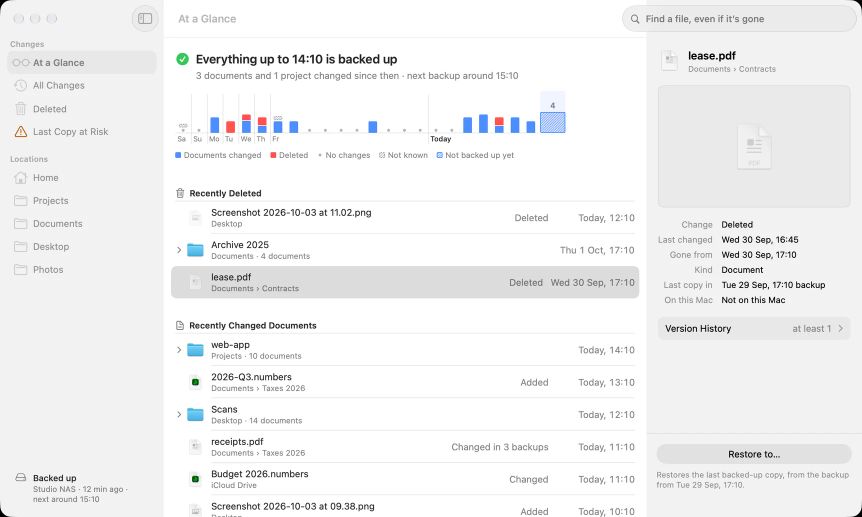
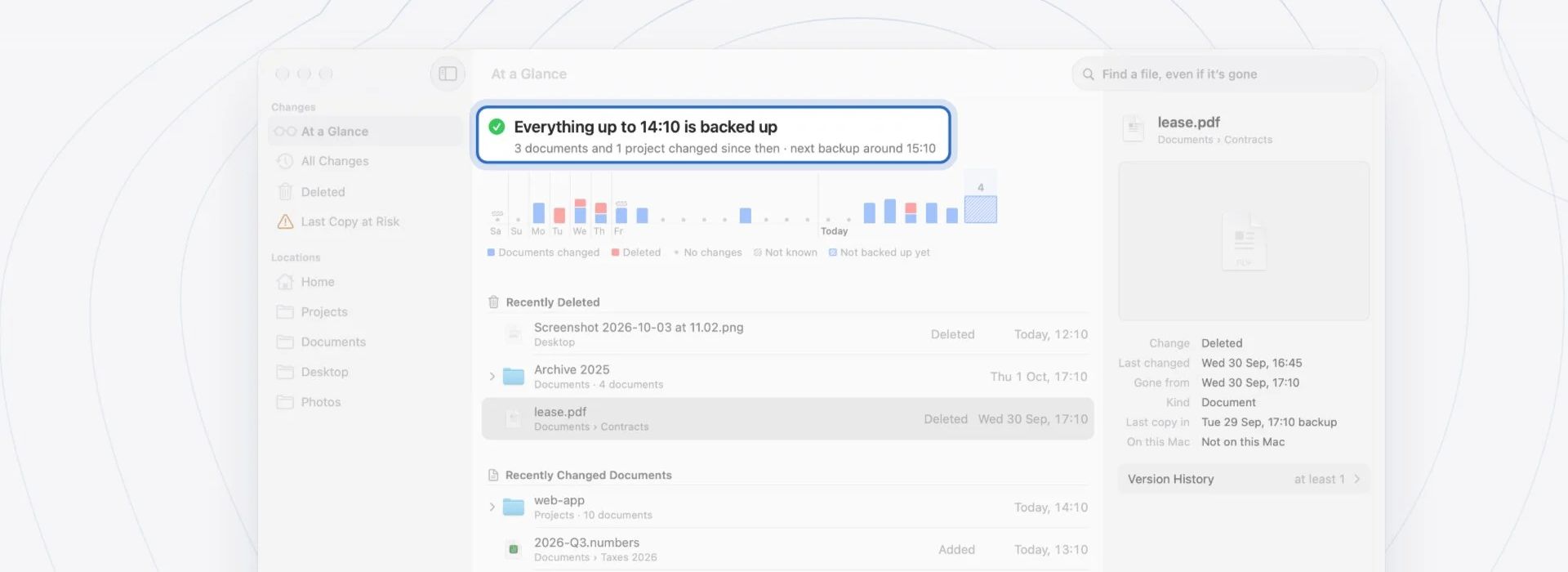
At a Glance. The window opens with where you stand ("Everything up to 14:10 is backed up"), followed by a week strip with one bar per backup, the documents you deleted and the ones you changed.
Find a file by name, including deleted ones, and see where each one was.
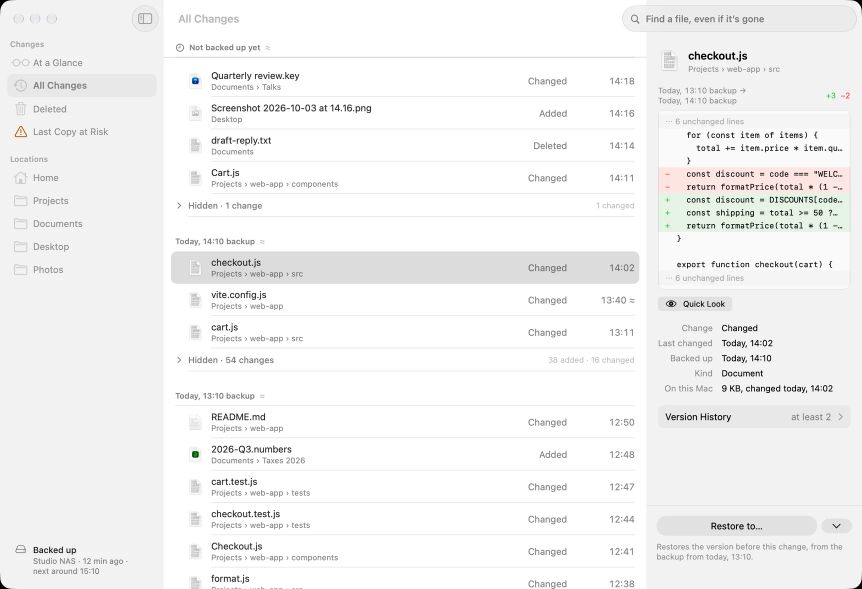
Version History. For a file, the versions your backups hold, next to the copy on your Mac. Press Space and Quick Look opens both versions full size. Text and code get line-by-line diffs, binary plists are shown as readable XML, and PDFs, images, Pages and Office documents are shown side by side.
Restore to… any folder you like, in a normal window next to your work. Never full screen. Nothing gets overwritten, and Finder tags and dates come back with the file.
Find in Backups. Pick a folder, type part of a name, and see what that folder held backup by backup, including backups from before you installed the app.
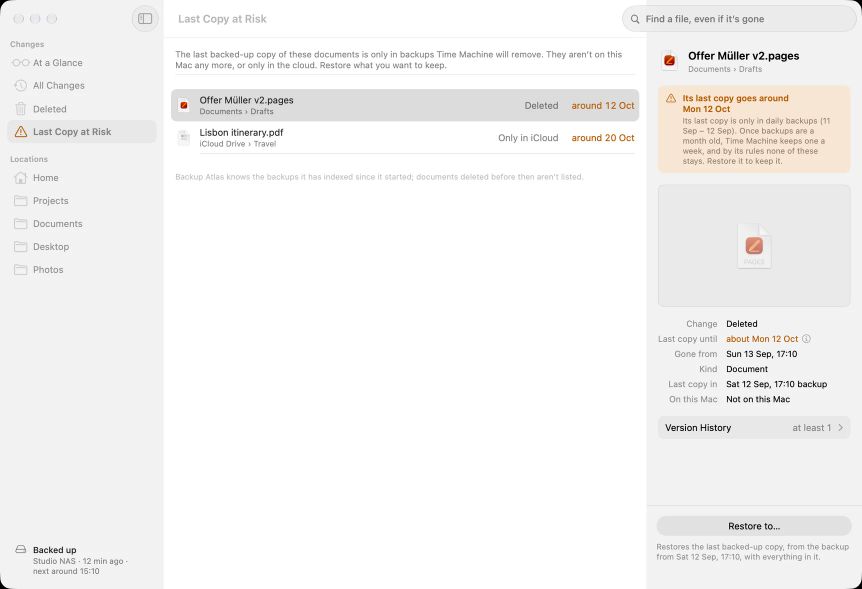
Last Copy at Risk. Deleted documents whose last backed-up copy Time Machine is about to thin away, and roughly when that will happen.
There's also a menu bar item that shows an orange dot only when something is actually wrong: a backup is overdue, the disk can't be reached, or backups keep failing or have stalled. And there's a desktop widget.
Since I spend most of my day in code, a few things are there specifically for developers:
- A git branch switch counts as one change in At a Glance, no matter how many files it touched.
- Hidden files are grouped, never dropped. Dot-folders and
Librarysit under "Hidden" instead of drowning out your documents. - Packages like apps, Photos libraries, VMs and package documents show up as changed when anything inside them changed.
- Everything works from the keyboard.
Version Control for Your Whole Mac*
That's a line I use for the app, and the asterisk matters. Backup Atlas can only show what Time Machine kept and what it saw happen, so:
- Changes are recorded while the app runs, starting from the day you install it.
- Earlier versions exist only where a Time Machine backup holds them.
- A file created and deleted between two backups has no copy anywhere.
- A file's history ends when Time Machine thins away the last backup that holds it.
- You can only restore a file from a backup that still holds it.
- Moves are paired only when both ends fall between the same two backups.
- Excluded folders have no history.
I'd rather say that up front than have someone find out when they need a file. Most of what follows is about how the app knows what it knows, and how it deals with what it doesn't.
No API, and Why tmutil compare Doesn't Cut It
There is no public API for Time Machine backups, and none for comparing them.
backupd and the BackupCore framework are private. What you get is tmutil
and the backups themselves on disk.
tmutil does have a compare command, and the obvious design would be to run
it after every backup and store the result. It doesn't hold up in practice:
- It walks two entire directory trees, and one of them is often on a NAS over SMB. That would take an estimated tens of minutes or more, every hour.
- It needs Full Disk Access, like everything else here.
- It's easy to misuse. Called with no arguments, it diffs your whole Mac against
the latest backup. And
tmutilwith-Xprints an empty plist even when it fails, so you can't trust the output without checking the exit code.
So I looked at how Time Machine itself figures out what to copy. It doesn't diff trees either. It uses FSEvents, the file system's change journal. Apple found snapshot diffing slower and less accurate, which Howard Oakley describes in How does Time Machine make a backup?
Building on FSEvents
That's what Backup Atlas does too. While it runs, it records an FSEvents journal of your home folder into a single SQLite file. After each backup it builds a change set for that backup: what changed since the previous one.
The trick is knowing which events belong to which backup. FSEvents gives every
event an ID, and backupd stores the event ID it backed up to in extended
attributes on each backup. Mapping event IDs to those boundaries turns a stream
of events into "these files changed between the 13:10 and the 14:10 backup".
When the backup disk isn't mounted, the boundary is estimated, and the app
knows that it's an estimate.
That distinction matters, because FSEvents is messy.
Facts and Inferences
Every state in the index records its basis. It's either a fact (read from the live disk, carried over from an earlier fact, or read from the backup itself) or an inference. An entry only counts as certain when both sides of the change are backed by facts. Inferences never compound: the app won't build a conclusion on top of a guess on top of a guess.
In the UI, an inferred change says so in its details ("Certainty: Inferred"),
and times or backup boundaries that are only estimated carry a small ≈. It
would be easy to hide that. But this is a tool you reach for when something
important is missing, so it should tell you how sure it is.
When FSEvents Gives Up
Under load FSEvents drops events. When it does, it doesn't tell you which ones; it sends a "must rescan subdirectories" flag, sometimes on the root. During a busy day that wiped out the live answers for whole stretches of time. There was simply nothing reliable left to say.
The fix was to ask a different source. Before each backup, Time Machine creates a local APFS snapshot, and that snapshot is exactly what the backup copied from. So when events are missing, Backup Atlas mounts that snapshot read-only and asks it, in one batch, what was actually there. The answer isn't a guess anymore; it's a fact. In the second beta that turned busy daytime change sets from mostly uncertain into mostly certain.
Renames Without a Direction
FSEvents reports renames, but not which end is the old name and which is the
new one. That's a problem, because a lot of apps save safely: write the new
content to a temporary file, then rename it over the original. Read naively,
that's "document added, moved from .tmp", which doesn't tell you anything
useful.
So the index pairs both ends of a rename by inode, and recognises the naming patterns of temp files. A safe-save reads as what it is: the document was modified.
A Known Gap
One case the journal misses comes from Git. Git puts every pack and loose
object in place with a hard link followed by an unlink of the temp name. That
leaves the file flagged as hard-linked, and FSEvents never reports removing
the last name of such a file. So when Git later deletes a pack during a repack
or gc, the journal doesn't hear about it.
Reading Content Lazily
The index knows that a file changed. The content stays where it is until you ask for it.
Versions from about the last 24 hours open immediately, because they still exist as local snapshots on your Mac, which the app mounts read-only. Older versions live on the backup disk. The app reads them while it's connected, when you click Compare with Backup: it says that it needs the backup disk, and waits for you.
History From Before You Installed It
Recording from install day onward means the app starts with nothing to show. So in the background, only on power and only while the backup disk is connected, it scans older backups pair by pair and fills the same index, read-only. Your history starts the day you install it, and the past gets filled in behind it.
Thinning
Time Machine thins its backups: hourly for 24 hours, daily for a month, weekly after that. When a backup disappears, the change sets on either side of it are simply merged: A→B plus B→C becomes A→C. Nothing has to be replayed.
Knowing those rules also lets the app look ahead. If you deleted a document and its last copy only lives in backups that are about to be thinned away, it shows up under Last Copy at Risk, with roughly when it will be gone.
Smaller Things
tmutil listbackups has side effects. It mounts every backup to list them.
That's fine once; it's not fine for a menu bar item that keeps checking in
the background. The watchdog reads backup dates from Time Machine's preferences
instead.
It can't be sandboxed. It needs Full Disk Access and runs tmutil, and
child processes inherit the sandbox. So it's not in the Mac App Store. It's a
notarized Developer ID app, downloaded from the website.
Privacy
An app that indexes your files has to be careful with them:
- There's no account. License keys are signed and checked offline on your Mac. There's no activation server and nothing to sign in to.
- The index and your file history stay on your Mac. They're never sent anywhere.
- The only connection the app makes to the internet is the update check to backupatlas.app. It carries nothing from the index and no license key, and you can turn it off. Backups on a NAS are read over your local network.
- The website uses no tracking, no cookies and no third-party requests.
Join the Beta
Backup Atlas is in beta (1.0.0-beta.3 at the time of writing). It needs macOS 14 Sonoma or later and Full Disk Access, and the app walks you through granting it. It's one universal app.
The main thing I'm asking for is testers. Sign up at backupatlas.app, confirm your email, and I'll approve sign-ups by hand and send you a beta key that unlocks the full app. I'm especially looking for people on setups I haven't been able to test yet:
- Intel Macs
- macOS 14
- Local USB backup disks
- Synology or QNAP over SMB
- Macs backing up to more than one destination
If you'd rather just try it, you can download it and use the full app for 14 days. After the trial the menu bar watchdog keeps working; browsing changes needs a key.
Backup Atlas will be a paid app. Beta keys stay valid after launch, just like a bought key.
Feedback, bug reports and "it doesn't work on my NAS" go to [email protected]. What changed between versions is in the release notes.
Things I Learned
When there's no API, look at what the system does itself. Time Machine doesn't diff trees, and neither does Backup Atlas. Following the path Apple chose saved me from building something slow and fragile first.
Record where every answer came from. Once each state carries its basis, "is this certain?" becomes a question the data can answer.
When one source fails, look for another. FSEvents dropping events looked like a gap I couldn't close, until I realised the backup's own snapshot already knew the answer.
Design for what the data structure loses. Thinning deletes backups, so change sets had to be mergeable from the start. That one decision made thinning trivial.
Say the limits out loud. The asterisk on "version control for your whole Mac" isn't fine print. It's the most useful thing to know about the app.
Final Thoughts
Time Machine is one of the best things about the Mac. You set it up once and it just keeps going, quietly, for years. But the part where you actually use those backups hasn't kept up. The full-screen star field is still the main way in.
Backup Atlas is my attempt at the other half: see at a glance what changed, look at the history of a file next to your work, and get back what you need without the rest of the Mac stopping. It's the Time Machine app I always wanted. If it sounds like one you want too, join the beta.